
Getting the best PS1 R36S settings dialled in is the difference between choppy, stuttering nostalgia and a genuinely smooth ride back to 1997. The R36S runs PlayStation One games through PCSX ReARMed, an emulator core inside RetroArch that is built for ARM processors like the Rockchip RK3326 chip powering this handheld. The good news is that PS1 is a very natural fit for this hardware. The bad news is that a few wrong toggle flips can make Crash Bandicoot feel like it is running through syrup.
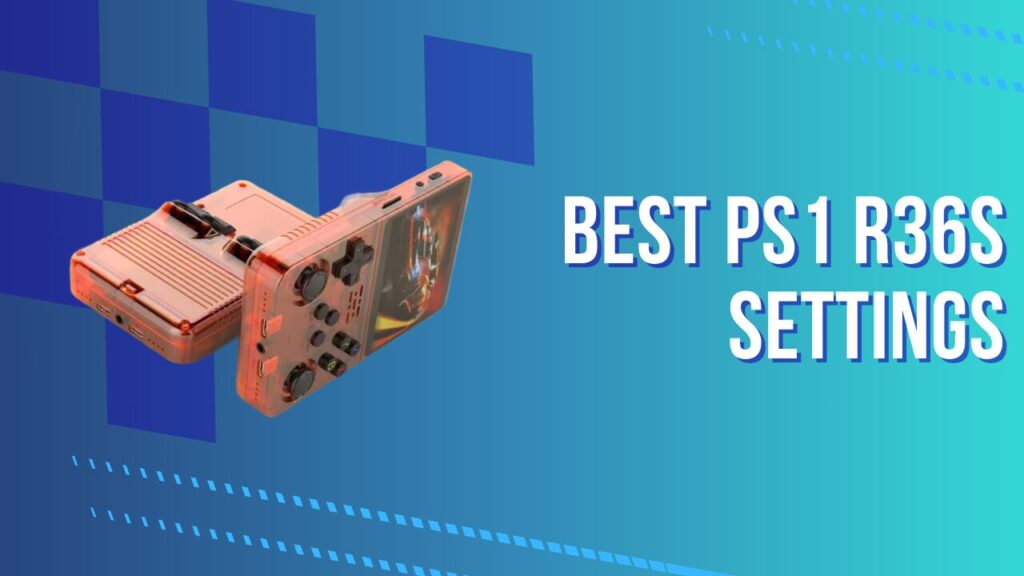
This guide covers every configuration decision that matters, from BIOS to ROM format to the core options that genuinely improve stability and speed.
Key Takeaways
- The R36S runs PS1 games through PCSX ReARMed inside RetroArch, and that is the right core for this handheld.
- CHD is the best ROM format for most users because it saves space, cuts clutter, and works cleanly with Precache.
- A real BIOS file matters. PSXONPSP660.bin is the best starting point for broad compatibility.
- Enhanced Resolution should stay off for most games because the visual gain is smaller than the performance hit.
- Threaded Rendering, Dynamic Recompiler, and clean RetroArch overrides do most of the heavy lifting.
- The 640×480 screen is a perfect 2x match for typical PS1 output, so native rendering already looks surprisingly sharp.
Can the R36S Run PS1 Games?
The R36S can run PS1 games, and it can run them well when the setup is clean. This device uses a Rockchip RK3326 quad-core ARM Cortex-A35 CPU with a Mali-G31 MP2 GPU and 1GB of RAM, which gives it more than enough headroom for the vast majority of the original PlayStation library. The real bottleneck is rarely the silicon. The real bottleneck is usually a messy configuration, a missing BIOS, or a bloated setting that sounds clever and performs terribly.
The R36S display also helps more than people expect. Its 3.5-inch IPS panel uses a 640×480 4:3 resolution, which maps very neatly to the PS1’s common 320×240 output. That means native PS1 visuals scale cleanly without awkward stretching, and that alone makes the handheld feel more at home with Sony’s first console than a lot of wider modern devices.
The Right Core: PCSX ReARMed
PCSX ReARMed is the correct emulator core for PS1 on the R36S, and choosing anything else usually creates problems rather than solving them. This core was built around ARM optimization and includes a dynamic recompiler that translates the PS1’s original MIPS instruction set into ARM instructions on the fly. That is the reason PS1 emulation feels light and responsive on the RK3326 instead of strained and inconsistent.
ArkOS usually ships with PCSX ReARMed already mapped to the PSX folder, so there is no real setup drama here. What trips people up is the layer underneath, because RetroArch lets you change a setting globally, per core, or per game, and those three layers can quietly fight each other. I have seen a game run perfectly, then run poorly again after a reboot, simply because the user changed a setting in the quick menu and never saved a core override. If you are still getting comfortable with that stack, the complete RetroArch setup guide for the R36S is the right companion piece.
Why Not DuckStation or Other Cores?
DuckStation is excellent on desktop and more powerful handhelds, but the R36S is not trying to be a miniature gaming PC. PCSX ReARMed is the sensible choice because it was built for low-power ARM devices and tuned around exactly this sort of hardware envelope. On the R36S, the best emulator is not the fanciest one. It is the one that wastes the least performance.
PS1 BIOS Setup on R36S
A real BIOS file is still one of the biggest quality-of-life upgrades you can make for PS1 on the R36S. PCSX ReARMed can fall back to an HLE BIOS, but that shortcut is where odd bugs, game-specific boot failures, and flaky memory card behaviour tend to creep in. A proper BIOS reduces that friction and makes the emulator behave more like the original hardware.
BIOS File Priority And Placement
PCSX ReARMed checks for compatible BIOS files in a priority order, and the first valid one it sees is the one it uses.
| Filename | Version | Notes |
|---|---|---|
| PSXONPSP660.bin | PSP extracted | Best all-round recommendation |
| scph101.bin | Version 4.4 | PS One slim BIOS |
| scph7001.bin | Version 4.1 | North America |
| scph5501.bin | Version 3.0 | North America |
| scph1001.bin | Version 2.0 | Early launch-era BIOS |
Place the BIOS file in the /BIOS folder on the second SD card, which is the card that holds your ArkOS system files. The filename needs to match exactly, and this is one of those details that feels annoyingly small until it breaks everything. In my experience, the sneakiest failure is a file that looks correct but is actually named PSXONPSP660.bin.txt because Windows hid the real extension. Another common mistake is leaving the BIOS inside a zip archive, which RetroArch will happily ignore while you sit there wondering why the core still boots in HLE mode.
PSXONPSP660.bin is the safest starting point because it tends to behave well across a wide range of titles on portable setups. I still use it first on fresh installs because it saves time, and time is usually what you are really trying to preserve when you tune a handheld.
Best PS1 R36S Settings In PCSX ReARMed
The Core Options menu is where the R36S goes from merely capable to properly dialled in. Launch a PS1 game, open the RetroArch quick menu, go to Core Options, and treat these settings as your baseline rather than your final experiment. A clean baseline matters because PS1 performance problems tend to stack. One harmless-looking option rarely ruins a game by itself, but two or three can.
Core Options That Move The Needle
Dynamic Recompiler: Enabled. This should stay on. If it is disabled, the core falls back to slower interpretation and performance drops hard.
Threaded Rendering: Async. This is the sweet spot for most games on the R36S. It smooths out frame pacing without introducing the sort of instability that more aggressive tweaks can create.
Enhanced Resolution: Disabled. This is the classic trap setting. It sounds like a free visual win, but on RK3326 hardware it often turns stable 3D games into borderline ones. You may get away with it in lightweight menus or 2D scenes, then watch performance collapse the moment geometry, fog, or particle effects show up. I always tell people to earn their visuals after they earn their stability.
Frame Duping: Enabled. This helps frame pacing and is usually worth leaving on.
PSX CPU Clock: 57. The default is right for most of the library. If a game feels just a little heavy, testing 60 to 65 can help, but pushing this too far can create audio drift or strange timing issues.
Frameskip: 0. Keep this off unless you are deep into last-resort territory. Frameskip makes motion uglier before it makes a game meaningfully better.
CD Access Method: Precache. This is excellent for CHD files because it loads the disc image into RAM and cuts down on SD-card read stutter.
Sound Interpolation: Simple. This gives you clean enough audio without spending extra CPU cycles for tiny gains.
Enable Dithering: Enabled. The PS1 used dithering heavily, and leaving it on helps the image look like a PS1 image instead of a cleaned-up imitation.
The other setting that deserves more attention is not inside the core itself. It is whether you actually save what you changed. After you tune the core, save a core override or a game override, depending on whether the tweak should apply broadly or only to one title. I have watched people benchmark the same game three times, swear the setting helped, then lose the change completely on the next launch because RetroArch never saved it.
RetroArch-Level Video Settings
RetroArch-level settings matter because they sit on top of the core and can quietly undo sensible emulator choices.
Bilinear Filtering: Off. The R36S already scales PS1 cleanly, so bilinear filtering mostly softens edges and removes the crispness that makes native PS1 output look good on a 640×480 panel.
Aspect Ratio: 4:3. This is the correct display shape for PS1 games and the natural fit for the R36S screen.
Two global features deserve a warning here, because they often stay enabled from another system profile and then sabotage PS1 performance. Rewind and runahead both add overhead, and on a lightweight RK3326 handheld they are not cheap little extras. In my experience, rewind is especially guilty because it feels harmless in menus, then starts nibbling away at frame stability the moment you load a heavier 3D game. If PS1 feels oddly sluggish even with sensible core settings, check those global latency features before you touch anything more dramatic.
These emulator settings sit on top of broader system-level behaviour. The R36S performance optimization guide is useful if you want to go deeper into governor settings, firmware tuning, and the limits of what ArkOS can squeeze out of the hardware.
PS1 Game Format For R36S
ROM format matters more than it gets credit for. It affects storage efficiency, file cleanliness, multi-disc handling, and sometimes even whether a game seems reliable from session to session.
CHD: The Best Format For R36S
CHD is the best format for most PS1 libraries on the R36S. It compresses the disc data into a single file, reduces clutter, and pairs nicely with Precache in PCSX ReARMed. A large BIN/CUE game can shrink dramatically as a CHD without creating extra hassle during use.
The real practical benefit is not just smaller storage. It is cleaner management. A PS1 library full of loose BIN tracks becomes annoying fast, especially on a handheld where you want quick scanning, neat folders, and fewer chances to break file relationships by accident. I usually convert multi-track discs to CHD early because it eliminates a whole category of future housekeeping.
BIN/CUE And Other Supported Formats
BIN/CUE still works well, and sometimes it is the easiest choice if you already have a curated collection in that format. The problem is that CUE sheets can be fragile. If the CUE references a BIN filename that no longer matches the real file, the game may boot without music, fail to load a track properly, or behave inconsistently after the intro. In my experience, missing CD audio is one of the first signs that the dump itself is fine but the file relationship is not.
ISO, IMG, MDF, and PBP can also work, but CHD remains the cleanest long-term option. One thing I would avoid is leaving PS1 games zipped just because another emulator on another device tolerated it. On the R36S, zipped archives are a great way to create confusing launch failures that look like emulator problems but are really just file-format problems.
Multi-Disc Games And M3U Files
Multi-disc games need an M3U playlist if you want disc swapping to feel painless. Create a plain text file with the .m3u extension and list each disc’s CUE file on its own line.
Final Fantasy VII (Disc 1).cue
Final Fantasy VII (Disc 2).cue
Final Fantasy VII (Disc 3).cue
Load the M3U file instead of an individual disc. When the game asks for the next disc, open RetroArch, go to Disk Control, open the tray, switch the disc index, and close the tray.
The annoying part is that M3U files are very literal. The filenames and paths must match exactly. If you rename one disc later for neatness, the playlist can silently break and make the disc swap fail right when the game expects it. I learned that one the irritating way, mid-save, which is exactly when nobody wants a lesson in file path discipline.
For the broader file transfer workflow, the step-by-step ROM loading guide for R36S walks through the folder structure and import process.
R36S PS1 Resolution And Upscaling
The R36S handles PS1 resolution very naturally because the display lines up so well with what the console originally output. A lot of PS1 content lands around 320×240, and the handheld’s 640×480 screen gives you a clean 2x integer scale. That means the default image is already sharper than many people expect before they touch a single enhancement setting.
Upscaling is where expectations need to stay realistic. Enhanced Resolution can make polygon edges look cleaner, but the cost lands on the GPU immediately, and the Mali-G31 in this handheld is not built for generous overhead. Small screens are forgiving, and that works in your favour here. Native rendering with a good aspect ratio and filtering disabled usually looks better than an over-processed image that cannot hold full speed. If you want to explore visual tweaks without wrecking performance, the ArkOS complete guide and best builds page is the better place to experiment with broader visual setup.
How To Add PS1 Games To R36S
Adding PS1 games to the R36S is mostly a file-management job. The second SD card stores the ROMs, so you can remove that card and connect it to a computer, then place your PS1 games in the ROMS/PSX folder or the equivalent PS1 folder used by your ArkOS build.
CHD files can go straight into the folder. BIN/CUE sets should stay together, and multi-disc M3U setups should keep all referenced files in the same location. Clean ejection matters more than people like to admit, because one sloppy removal is enough to create a library scan issue that looks like a firmware bug. If you are building a larger collection, storage quality also matters. The best SD cards for R36S is useful when you are deciding what card can handle a fuller PS1 library without becoming the weakest link.
Troubleshooting: PS1 Running Slow On R36S
Slow PS1 performance on the R36S is usually caused by a short list of predictable mistakes. Before you assume the hardware cannot handle a game, check the basics with a bit of discipline.
| Symptom | Most Likely Cause | What To Check First |
|---|---|---|
| 3D games stutter after menus look fine | Enhanced Resolution is on | Disable Enhanced Resolution and retest |
| Game boots but acts strangely or black screens | Missing or ignored BIOS | Confirm BIOS filename, location, and extension |
| Music skips or FMVs hitch | SD read bottleneck or broken BIN/CUE set | Use CHD and set CD Access Method to Precache |
| Performance changed after reboot | Settings were never saved | Save a core override or game override |
| Everything feels slightly heavier than expected | Rewind or runahead is enabled globally | Disable global latency features in RetroArch |
| One game runs badly while others run well | Title-specific load | Raise PSX CPU Clock slightly, then retest |
The four most common causes are still the same ones I see over and over. Enhanced Resolution gets enabled because it sounds attractive. A real BIOS is missing or invisible because the filename is wrong. BIN/CUE sets create audio or loading hiccups because the disc image is messy. Dynamic Recompiler gets disabled or overridden by accident. Those four checks solve most cases.
If those look correct and a game still struggles, the issue is often title-specific. Games with heavier 3D scenes, denser effects, or more demanding streaming can need a small PSX CPU Clock bump to 60, 62, or 65. That should be a measured adjustment, not a reflex. If the problem goes beyond emulation performance and starts looking like a broader device issue, the R36S problems guide is the next place to dig.
What PS1 Games Run Best On R36S
The R36S handles a huge chunk of the PS1 library comfortably, especially 2D games, JRPGs, platformers, and most fighting games. Those genres tend to play right into the strengths of PCSX ReARMed on a lightweight ARM handheld. Once the core is set properly, they just work.
Games that usually feel great on this setup include:
- Castlevania: Symphony of the Night
- Final Fantasy VII, VIII, and IX
- Spyro the Dragon series
- Tekken 3
- Tony Hawk’s Pro Skater 1 and 2
- Metal Gear Solid
- Silent Hill
- Chrono Cross
- Vagrant Story
I still think the sweet spot for the R36S is PS1 content that values consistency over brute-force spectacle. That is why RPGs, adventure games, and classic platformers feel so at home here. If you want a broader library across systems, the best games for R36S is a useful place to browse.
Conclusion
The best PS1 R36S settings come down to a handful of practical choices that work together. Use PCSX ReARMed with Dynamic Recompiler enabled, keep Enhanced Resolution off, load games as CHD where possible, use a real BIOS file, and let Threaded Rendering do its job. That combination gives you the cleanest balance of speed, stability, and image quality on this hardware. The R36S is not pretending to be a premium powerhouse, but with the right PS1 R36S settings it becomes a genuinely excellent little PS1 machine.
