
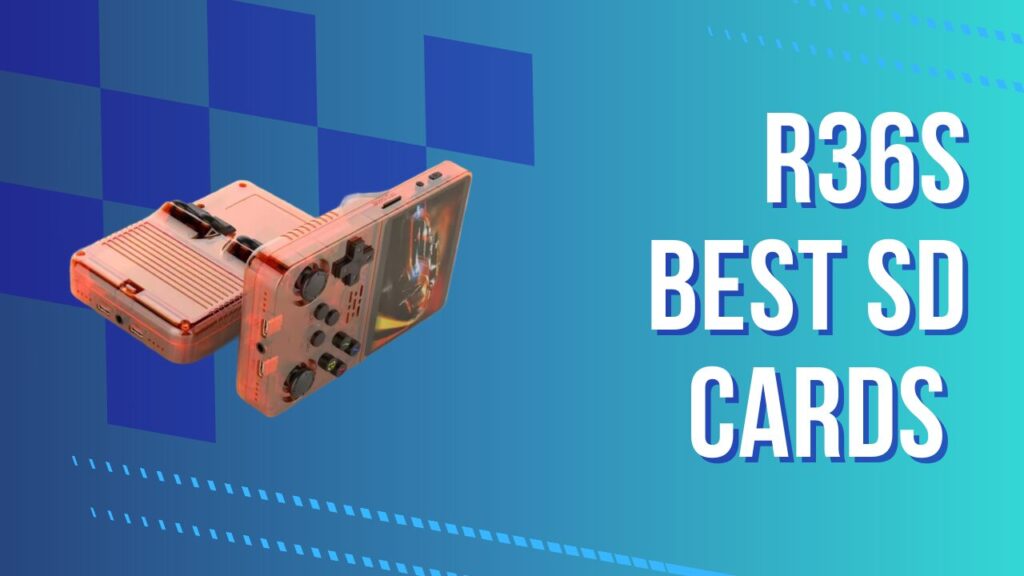
R36S SD card problems are one of the fastest ways to turn a cheap little retro handheld into a very annoying paperweight. The device commonly arrives with unbranded storage, and those stock cards are usually the weak link because they fail, corrupt saves, or cause ROM issues sooner than a decent branded replacement.
I learned that lesson the irritating way. Losing save data once is annoying, losing it twice makes you weirdly loyal to better storage.
The core layout is simple once you stop fighting it. ArkOS lives on the TF1 card, the handheld can use TF2 for ROM storage, and the system menu includes an Advanced option called “Switch to SD2 for ROMs” that builds the folder structure for the second card automatically.
This is why the right fix is not just “buy any card.” The right fix is choosing a branded card, formatting each slot for the job it actually does, and avoiding the boot mistakes that make people think the console is bricked when it is really just unhappy with the card, the partition, or the screen file.
KEY TAKEAWAYS
- Replace the stock cards early, because the included R36S cards are often the weakest part of the whole setup.
- ArkOS boots from the TF1 card, and TF2 is the cleaner place for ROM storage once the system is configured properly.
- Rufus and 7-Zip make the TF1 process much easier, especially when you are starting from scratch after corruption.
- A white screen or black screen after flashing does not always mean the card is dead, because screen files and boot partition issues can look almost identical.
- If TF2 behaves strangely, reformatting the second card and rerunning the SD2 switch flow is often faster than trying random fixes.
How to Choose an R36S SD Card That Will Not Fail
A good R36S SD card setup starts with one rule: stop trusting the factory cards. The cheapest mistake is keeping the bundled card a little too long, because it usually works just enough to make you think you got lucky.
Brand matters here more than marketing copy. In practice, branded replacements from Samsung or SanDisk are the safer move for both TF1 and TF2, because the R36S is far less forgiving than a phone or a Switch when storage starts misbehaving.
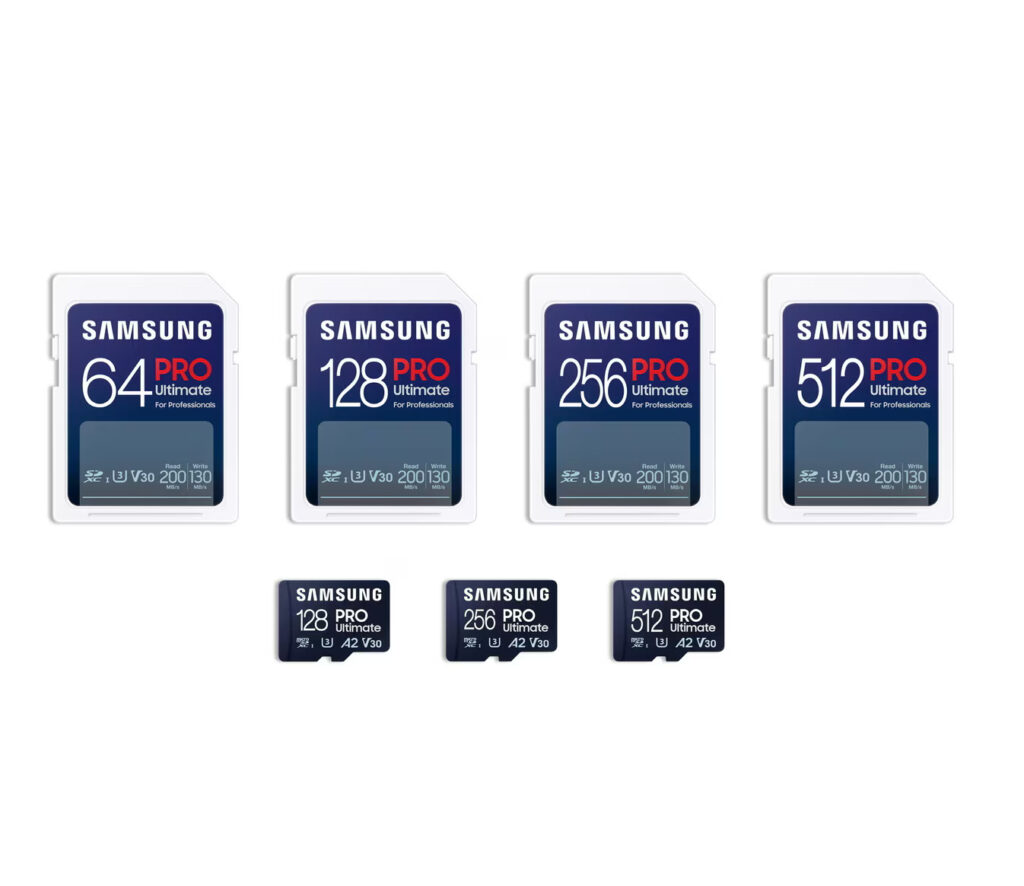
My own preference is simple. I personally like using a Samsung PRO Ultimate in the R36S because I would rather overbuy a little than rebuild a library after a flaky card starts acting haunted.
Capacity matters, but not in the way beginners expect. A dual-card setup works best when TF1 handles the operating system and TF2 gets the larger share of space for ROMs, BIOS files, scraped media, and the stuff that keeps quietly expanding after week one.
One hidden annoyance is fake-capacity microSD cards. They can look completely normal during the first copy job, then start corrupting files once you get deeper into the real usable space, which is why a suspiciously cheap “huge” card is usually a false economy. I have seen setups feel stable right up until someone loads a heavier PSP or PlayStation library, then the saves, scraped images, or BIOS files start disappearing in ways that look like software problems.
That leads to a practical buying rule:
- If you want the cheapest clean rebuild, use one branded 128GB card.
- If you want the least annoying long-term setup, use a smaller TF1 card for ArkOS and a larger TF2 card for games.
- If you plan to keep adding PSP, PlayStation, and scraped media, buy more TF2 capacity than you think you need.
If you are still deciding whether the handheld is worth upgrading at all, read the full R36S review before spending more on storage. That context helps you decide whether a quick refresh is enough or whether the console deserves a full rebuild with new firmware, better cards, and a tidier ROM set.
The Best One-Card and Two-Card Setups
The one-card setup is the easiest option for beginners. You flash ArkOS to one branded card, let the device build its partitions on first boot, and then use the EASYROMS partition for your game files.
The two-card setup is the cleaner option for people who tinker. TF1 handles the operating system, TF2 holds the ROM library, and ArkOS can switch the storage location from inside the menu so the second card gets the proper folder structure.
Here is the version I would actually recommend:
| Use case | TF1 card | TF2 card | Why it works |
|---|---|---|---|
| Budget rebuild | 128GB branded card | None | Fewer moving parts, fewer setup mistakes, easy for a first install. |
| Balanced setup | 64GB branded card | 128GB branded card | Cleaner separation between system files and game storage. |
| Long-term setup | 64GB branded card for ArkOS and boot files | 256GB or larger branded card for ROMs, BIOS, and future additions | Best if you keep expanding your library and hate reorganizing later. |
There is one important catch with dual-card setups. The operating system card still needs to stay in TF1, because the R36S boots from that card even when ROMs live on TF2.
The friction most people do not expect is that a dual-card setup is not really “set and forget” until the first successful reboot after the SD2 switch. I always treat that reboot like a checkpoint, because if the folders were not generated properly or the card was not seen cleanly, it is better to catch it before copying 80GB of ROMs onto the wrong structure.
If your bigger issue is first-boot confusion, screen files, or menu setup after flashing, use this step-by-step R36S setup walkthrough for the post-install flow. It pairs naturally with this storage guide because most “bad SD card” complaints are really half storage issues and half setup issues.
How to Flash and Format the TF1 System Card
The TF1 card is the boot card. Its job is to hold ArkOS and let the handheld create the proper partitions on first boot.
Start by downloading the ArkOS image that matches the R36S flow, then extract the compressed file so you end up with the .img file needed for flashing. The common workflow uses 7-Zip for extraction.
Next, flash that image to the microSD card with Rufus or another compatible imaging tool. Rufus is the simplest path for most Windows users, because it makes the device selection and write process obvious enough that you are less likely to do something catastrophic.
After flashing, eject the card safely and insert it into TF1 while the device is powered off. On first boot, ArkOS resizes partitions automatically, and the handheld may reboot during initialization.
This is the moment where people sabotage themselves. When you insert the card back into a Windows PC, Windows may complain that parts of the card are not formatted, but the correct move is to cancel those prompts and leave the boot partitions alone.
Another hidden pain point is that the BOOT partition can look missing even when the flash worked perfectly. In Windows, the partition may be hidden or lack a drive letter, so people assume the card is broken and start over unnecessarily. I have done that loop before, and it is maddening because the card is often fine, the PC just is not showing the partition in a useful way.
The TF1 workflow, stripped to essentials, looks like this:
- Download the ArkOS image.
- Extract it with 7-Zip.
- Flash the .img file with Rufus.
- Insert the card into TF1 and boot the handheld.
- Let ArkOS finish initialization before touching anything.
- Ignore Windows format prompts on the boot partitions later.
That is the system card done. Clean, boring, and exactly how it should be.
How to Format the TF2 ROM Card
The TF2 card is the library card. Its job is to hold ROM folders, BIOS files, and the easier-to-manage storage side of the handheld.
For the standard dual-card method, format the second card as a normal storage card, insert it into TF2, boot the console, open Options, open Advanced, and run “Switch to SD2 for ROMs.”
That menu step matters more than people think. It is what populates the second card with the folder structure ArkOS expects, and that is the point where the device stops treating TF2 as just a blank card and starts treating it as the active ROM target.
The first trap is over-processing the second card. A lot of people treat TF2 like another OS card, mess with extra tools, or reflash it for no reason, when in reality the second card usually works best when it is simply a clean storage card waiting for ArkOS to build the folders.
The second trap is assuming exFAT versus FAT32 is a purely theoretical choice. In real use, exFAT often works fine as a starting point, but some stubborn setups behave better after a fresh FAT32 format, especially when the system keeps failing to mount TF2 or the folder structure never appears. I have had the best results by starting simple, testing the SD2 switch once, then changing only one variable at a time instead of reformatting everything in a panic.
So here is the practical rule I use:
- Start with exFAT for TF2 if you want the cleaner modern workflow.
- Retry with FAT32 if the card is not recognized, the SD2 switch does nothing, or the filesystem keeps acting weird.
- Keep the card branded and freshly formatted before blaming ArkOS.
Once ArkOS has prepared the second card, power the device down and move your ROMs and BIOS files into the folders that were created on the card. The system behaves much better when you let it create the structure first instead of guessing folder names manually.
If you want a compact process, do this:
- Format TF2 as storage.
- Insert TF2 with the TF1 OS card already installed.
- Boot the device and go to Options, then Advanced.
- Select “Switch to SD2 for ROMs.”
- Shut the system down after the folders are created.
- Copy ROMs and BIOS files to the new TF2 folder structure.
That is the point where the setup finally stops being theoretical and starts being useful.
Common R36S SD Card Problems and Fixes
The most common problem is still the simplest one: bad stock media. If the handheld came with mystery-brand storage, assume that card is guilty until proven innocent.
The second common problem is the black screen or white screen panic. A fresh branded card can still boot badly if the screen files or boot-side configuration are wrong, which is why storage and firmware problems get mixed together so often on this device.
The third problem is Windows trying to be “helpful.” When Windows offers to format the card after you insert a flashed system card, that prompt is not a sign that you should click yes. It is usually a sign that Windows sees partitions it does not understand.
The fourth problem is sizing TF2 badly. If the second card is smaller than the amount of data the system is trying to migrate or build around, the SD2 switch can fail in ways that feel random until you remember the capacity mismatch.
The fifth problem is assuming TF2 can replace TF1. It cannot, because the R36S still needs the operating system card in TF1 to boot correctly in the normal dual-card flow.
This is the part where tiny setup mistakes waste the most time, because they mimic hardware failure. I always check the boring stuff first, card brand, actual capacity, file system, slot position, and whether the ROM folders were generated, because those five checks solve more “dead console” reports than people expect.
| Symptom | Most likely cause | What to do first |
|---|---|---|
| White screen on boot | Screen file or boot-side mismatch | Recheck the flashed TF1 card, then verify the BOOT partition and relevant display files |
| Black screen after fresh flash | Bad flash, wrong image, or boot-side config issue | Reflash TF1 cleanly and test with one known-good branded card |
| TF2 not detected | File system mismatch or card not prepared through SD2 switch | Reformat TF2, insert it blank, then rerun “Switch to SD2 for ROMs” |
| No ROM folders on TF2 | ArkOS never completed the storage handoff | Boot with TF1 in place, rerun the SD2 switch, then power down and inspect the card again |
| Windows asks to format the card | PC is seeing partitions it cannot read properly | Cancel the prompt and do not let Windows rewrite anything |
| Saves vanish or files corrupt late | Fake-capacity or failing card | Test with a genuine branded card and recopy only after verifying stability |
A quick troubleshooting map helps:
- White screen or flicker: suspect screen-file mismatch first.
- Black screen after flash: suspect the flash process or boot-side configuration before blaming every card in the house.
- No ROM folders on TF2: rerun the SD2 switch flow after reformatting the card.
- Windows asks to format BOOT partitions: cancel the prompt.
- TF2 migration fails: check that the second card is large enough for the data copy.
If the device boots but the overall experience still feels scrappy, this R36S setup guide for cleanup after flashing and storage prep is the right companion page. It closes the gap between “the card works” and “the handheld actually feels finished.”
The Setup I Would Actually Use
The setup I would actually run is not the absolute cheapest one. I would use a branded 64GB TF1 card for ArkOS and a larger branded TF2 card for ROM storage, because the split keeps the system side stable and makes the game side easier to rebuild or expand later.
I also would not waste time trying to rescue the bundled cards unless I had no other option. Too much R36S frustration starts with trying to save a little money on the one part most likely to betray you.
My personal pick for the games card is still the Samsung PRO Ultimate. It is probably more card than the handheld strictly needs, but I prefer reliable over “technically sufficient,” especially on a device where save files and scraped media can disappear behind one flaky storage problem.
The detail I care about most is repeatability. If I can reflash TF1, rerun the SD2 handoff, and get back to a clean known-good state without guessing, the setup is good enough for a cheap handheld that is supposed to be fun.
If you want the short version, here it is. The best r36s sd card strategy is a branded TF1 card for ArkOS, a larger branded TF2 card for ROMs, exFAT as your first TF2 attempt, FAT32 as your compatibility fallback, and zero sentimental attachment to the stock cards.
